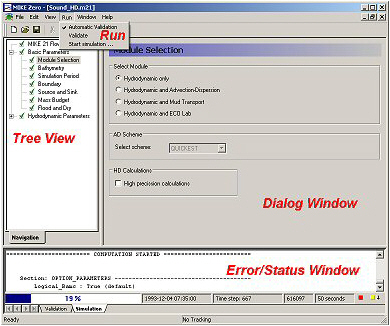
The setup editors are used for making input data for simulations and analyses. A MIKE Zero setup editor consists of 4 basic elements (see Figure 4.1).
The ‘Tree View’ is used for navigating through the input data. It may be regarded as a table of contents for the input data. By clicking on the desired location in the tree, a corresponding dialog will appear in the ‘Dialog Window’. The tree may be expanded or folded by clicking the boxes containing a ‘+’ for expanding and a ‘-’ for folding.
In ‘Dialog Window’ the actual data is given for the current subject of the ‘Tree View’.
The ‘Validation’ tab in the ‘Error/Status Window’ is used for error messages and warnings for obvious errors in the given input data. Clicking on an error message opens the dialog associated with the error or warning.
The ‘Simulation’ tab in the ‘Error/Status Window’ shows the progress of the simulation along with the contents of the -log file.
The ‘Run’ menu is used for running the analysis. Before starting any analysis or simulation, all input data is checked and cross-checked for obvious errors and saved. The analysis will not start if errors are encountered. Warnings will not halt the analysis.
Figure 4.1 Basic elements of the Setup Editors
The error message system in MIKE Zero Setup Editors detects obvious errors in the input. It may be a value too large, too small, or a wrong sign. It may also be more complex error checks as e.g. cross-checking values between 2 dialogs. Green marks in the ‘Tree View’ mean no obvious errors, while red crosses indicate that the corresponding dialog contains an error.
More than one setup editor may be open for input and output at the same time. Also more than one version of the same setup editor may be open at the same time.
