The Export embankment lines tool offers options to export polygons or polylines describing the extent of the river, either in a shape file or in a text file format. The latter can be used to exclude the river extent from a 2D flexible mesh, when coupling the MIKE HYDRO River model to a 2D model with MIKE FLOOD. Exported files can also be used to generate lateral links in MIKE FLOOD.
Export option
The method used to define the lateral extents as well as the output format can be selected here.
Embankment lines definition
Two options are available to define how the lateral extents are defined:
· Cross sections and river branch alignment: With this method, lateral extents are defined by the extents of the cross sections, but also by the river alignment between consecutive cross sections. That is, the lateral extent polyline / polygon is also defined with extra vertices, every time the branch changes direction. This is the recommended method per default, so that the lateral extent follows the branch alignment between cross sections.
· Cross sections only: With this method, branch alignment is ignored, and the lateral extent polyline / polygon is defined by straight lines between the ends of consecutive cross sections. This method is to be used when cross sections are sufficiently close to each other's to accurately describe the location of embankments, even without taking into account the branch alignment. It avoids getting intermixed polylines when cross sections are close, at locations where the branch changes direction.
Output
Two output types are available. For each option, it is possible to select whether the output file is a text file (with file extension *.xyz) or a shape file (with file extension *.shp).
· Export surrounding polygons with one file: This option creates a single file, containing one or more polygon. The exported text file can easily be imported afterwards in the Mesh Generator as boundaries, to exclude the polygons from the mesh.
· Export left and right alignment lines in individual files: This option creates one file per side of each exported branch, containing polylines. Hence each branch gets one file for the left extent polyline, and one for the right extent polyline. These polylines can be used to create lateral links in MIKE FLOOD. When using this option, each generated file is named with the specified output file name, but with a suffix containing the branch name, the start and end chainages, and the side.
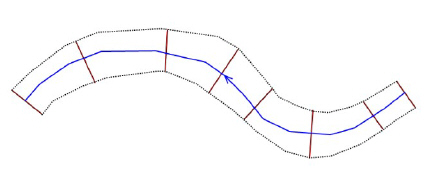
Figure 16.6 Illustration of the river extent. Blue line represents the river branch, brown lines represent cross sections and the dashed black lines represent the left and right lateral extent polylines. The polygon is defined with the two united lateral polylines.

Note: When exporting to text file, the file contains four columns with X and Y coordinates, followed by the embankment level Z and the connectivity. Units are always expressed in meters.
Apply to
Options selected here control which branches or parts of branches should be exported. Three options are available:
· All branches: All branches will be exported. In this case, it is not possible to control the range of chainages to be exported on the branches, i.e. the tool will process all branches in their entirety.
· Selected branches: Only on the selected branches will be exported. In this case, it is not possible to control the range of chainages to be exported on the branches, i.e. the tool will process selected branches in their entirety.
· Table of reaches: The list of reaches to be exported may be specified in a table, offering flexible options to control the branches to be included, and also the range of chainages for each branch. Only the parts of branches between the specified lowest and highest chainages will be exported, and if the box is checked in the 'Include' column.
When the option 'Table of reaches' is used, the following buttons are available above the table:
· Import all': Imports all branches in the table, i.e. it creates one row for each branch in the model. Each branch is given its default lowest and highest chainages.
· Import from file': Imports the 'Branch name', 'Lowest chainage' and 'Highest chainage' from a text file. The file format is: three columns with lowest chainage, highest chainage and branch name (in this order), with one separate line for each row of the table. Columns must be space-separated or tab-separated.
· Include all': Checks all boxes in the 'Include' column of the table.
· Exclude all': Unchecks all boxes in the 'Include' column of the table. Buttons
· Export: Generates the shape files or text files following the specifications in the dialogue window.
· Close: Closes the 'Export embankment lines' tool.
