MIKE 11 model data can be imported and applied in MIKE HYDRO River
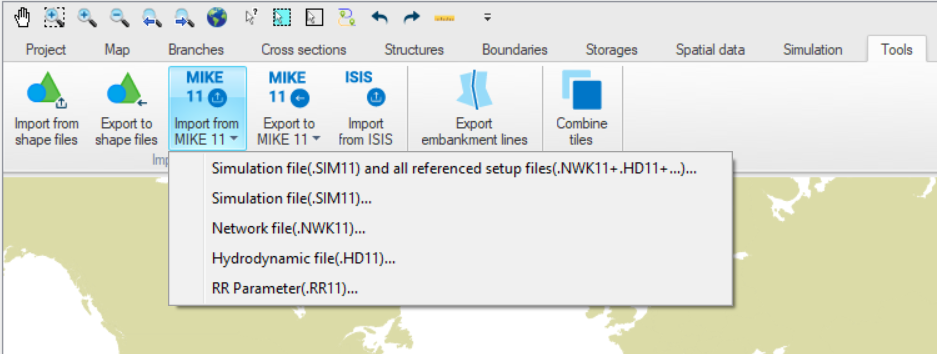
Activate the MIKE 11 Import from the Tools tab in the ribbon. A selection dialogue as presented in Figure 16.2 will appear and the required MIKE 11 import option can be selected from this dialogue.
Figure 16.2 Import from MIKE 11 files to MIKE HYDRO River
Importing a complete MIKE 11 model can be made through the first option; 'Simulation file (.SIM11) and all referenced setup files…'. This option import all model parameters defined in the MIKE 11 model setup.
Additionally, it is possible to import any individual MIKE 11 input parameter files by selecting the specific file type option in the import page.
Selection of any option listed in this page open a file selection dialogue that allows you to browse and select the specific MIKE 11 input file to import.

Important Notes:
· Importing any MIKE 11 file to MIKE HYDRO will automatically set the MIKE HYDRO calculation module to 'River'.
· Import of MIKE 11 files always add information to the actual MIKE HYDRO project. MIKE 11 model import can therefore either assist in creating a new River model or in adding additional data to an existing MIKE HYDRO project.
· When importing a HD11 file only data related to existing branches will be imported.
· Any data not supported by MIKE HYDRO will be ignored during the import. A message box will appear with errors and warnings related to the import.
· Imported data will not be re-projected. When importing data in an empty setup the feature coordinate system will be changed to the coordinate system of the imported data. When importing data in a setup with existing branches a warning is displayed.
