 , which will open a calendar that allows to browse for the required date (see Figure 4.3). Note, that the simulation time will still have to entered manually after choosing a date from the calendar date selection.
The simulation period is generally defined by specifying the required Simulation start date and time and Simulation end date and time.
Date and time can be edited manually by clicking the start date or end date field and change the date (Year+Month+Day) and time (hour+minutes+seconds). In this case it is possible to use the right and left arrow keys to navigate between the date and time variables.
Alternatively, dates can be selected using the calendar icon; , which will open a calendar that allows to browse for the required date (see Figure 4.3). Note, that the simulation time will still have to entered manually after choosing a date from the calendar date selection.
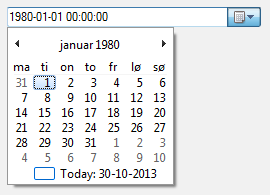
Figure 4.3 Calendar date selection option for simulation periods
Note that it is possible to use input time series for model input parameters, which have different length than the simulation period, and different temporal resolution than the simulation time step.
The `Apply default' button can be used to extract the possible simulation start-time and end-time. Once the button is activated a search of time-intervals in all time series files included in the actual simulation takes place and the earliest possible start-date and latest possible end-date is automatically transferred to the date-fields.

Note: If no dates are proposed from activating the button the most likely reason will be that there are no overlapping time series in the setup.
