A click on the right mouse button brings up a menu that allows for various manipulations of the active object or the object over which the cursor is positioned.
Properties
Add/Remove layers
Toolbar
File name legend
Scale legend
Aspect ratio
Move north arrow and convergence indicator
Copy to clipboard
Save to metafile
Save to bitmap
This is where you select files to plot and everything else about the picture and simulation setup.
In the Image Manager you can select between several file types to be included as additional layers on you plot.
In the Overlay Manager you have the option to choose the order by which the drawing of the layers in your plot occur. This way you choose if the layer should be in the background or foreground on your plot.
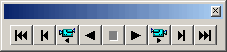
You can display a toolbar that enables you to move forwards and backwards in time to display results from a simulation and maybe create a video file.
The video icon creates the file.
As default, the file name and path of your input data file is shown on the plot, but you can switch this off by selecting this menu item.
As default, the scale is shown on the plot, but you can with this off by selecting this menu item.
You have the possibility to change the aspect ratio between the x-axis and y-axis selecting this menu item.
Move north arrow and convergence indicator
Selecting one of these and afterwards clicking on the desired new spot will move the North Arrow or the Convergence Indicator to the new spot. But of course only if the icon is already on the plot.
Zoom In allows you to zoom in on the plotted data and change the focus of the plot.
Zoom Out zooms out to default coverage.
Previous Zoom and Next Zoom zooms to the previous or following focus of the plot, respectively.
Copies the selected data to the clipboard. The general idea is that the graphics from an object at any time can be copied to a standard Windows application which supports GDI-operations. An example could be to export the graphics to MS Word. Activate the "Copy to Clipboard" function, then switch to MS Word and activate the "Paste"-function or press "Ctrl" V in and active Word document, and then a copy of the plot appears in MS Word.
Saves the current plot to an enhanced metafile.
Saves the current snapshot plot to a bitmap file. You also have the option to choose the graphics file formats .png, .jpg or .tif instead.
Defines the font used in the plots.
Note: The latest font settings will be used for all plot objects when opening the file.
"Help" brings up the relevant on-line help pages.
